What this tutorial covers
- Three ways to connect your health records
- What you'll see when you use Fasten Health, the service we partner with
- What happens after you connect, including processing times
- How to manage, refresh, and disconnect your providers
- How to connect records for loved ones you care for
- What to do if you get stuck
Before you start
What you'll need
- A My Doctor Friend premium subscription. Connecting health records is one of our premium features.
- A list of every health system that has your records. Take a few minutes to think through where you've been seen: your primary care, any specialists, the hospitals you've been admitted to, urgent care visits, imaging centers, anywhere lab work has been done. Write them all down so you don't miss any when you're connecting.
- The login and password for the patient portal at each system on your list (for example, MyChart, Kaiser, Sutter, One Medical, or your hospital's own portal). If you've forgotten any, reset them now so you don't get stuck partway through the flow.
- A few minutes of uninterrupted time. The connection itself is fast, but you'll want to be able to complete the login flow for each system in one sitting.
How it works, briefly
My Doctor Friend uses Fasten Health, a HIPAA-compliant service that connects to thousands of U.S. health systems, including Epic, Cerner, and most major hospital networks. Your patient portal credentials go directly to your health system through Fasten's secure connection. They never touch our servers.
When you connect, My Doctor Friend reads through every record and builds a structured personal health profile that you can edit. This is your record of your health, not your hospital's.
Three ways to connect
You can connect your health records from three places in the app:
- During profile creation, right when you first sign up or add a family member
- From your Health Profile page, at any time
- From the Settings page, at any time
All three use the same secure Fasten connection. Pick whichever is easiest for you.
Option 1: Connect during profile creation
Best for: new users, or when you're adding a caregiving profile for a loved one.
Step by step
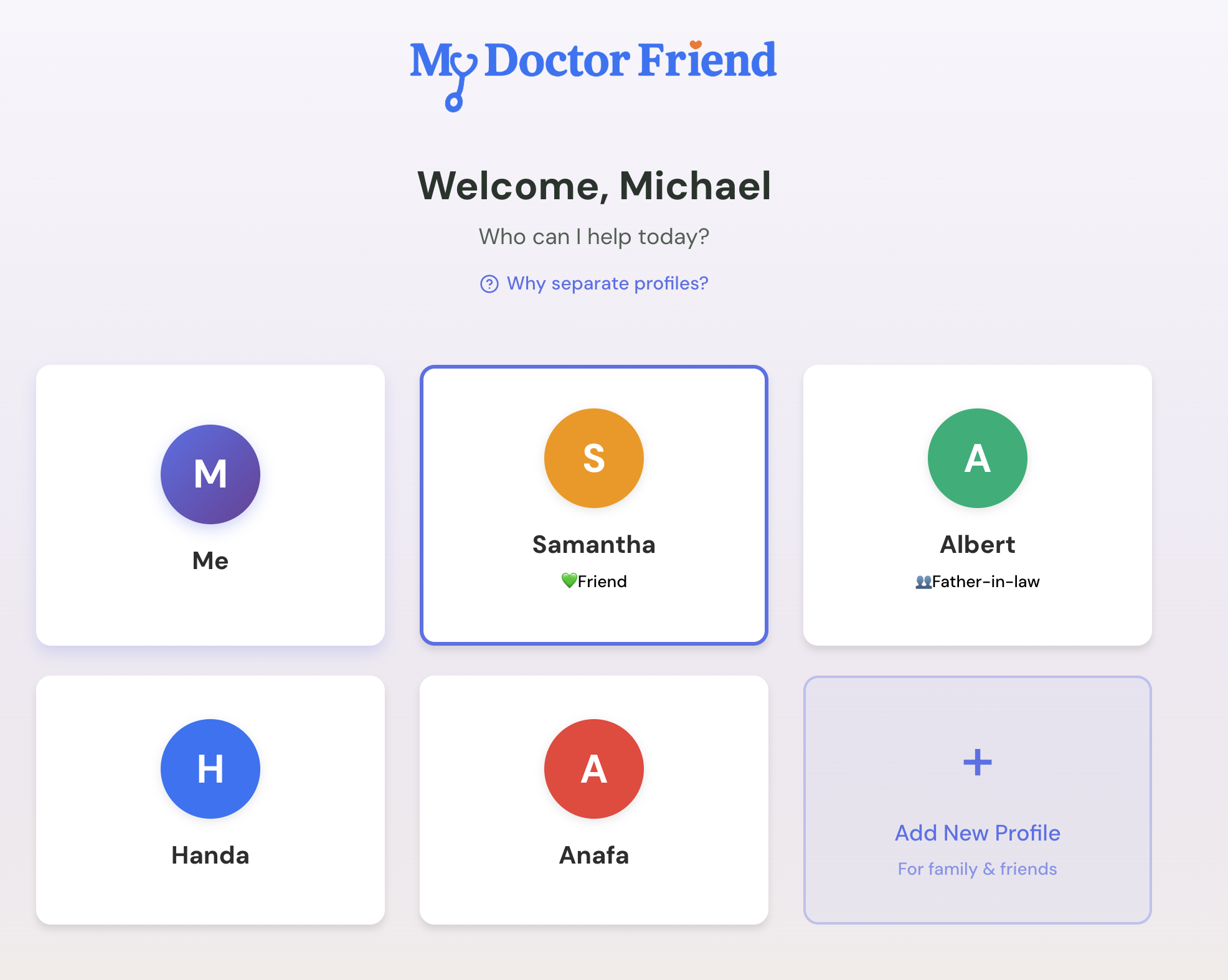
- On your first sign-up, or when you tap Add New Profile, open the Profiles page.
- Enter the profile name and relationship (for example, "Mom" and "Parent").
- Tap Create Profile.
- A modal appears titled "Why connect [Name]'s records?" with a short explanation of what Fasten Health does and what gets imported.
- Choose one of two options:
- Link Records, to start connecting right now.
- Create Profile Without Linking, to skip for now. You can always come back from the Health Profile or Settings pages.
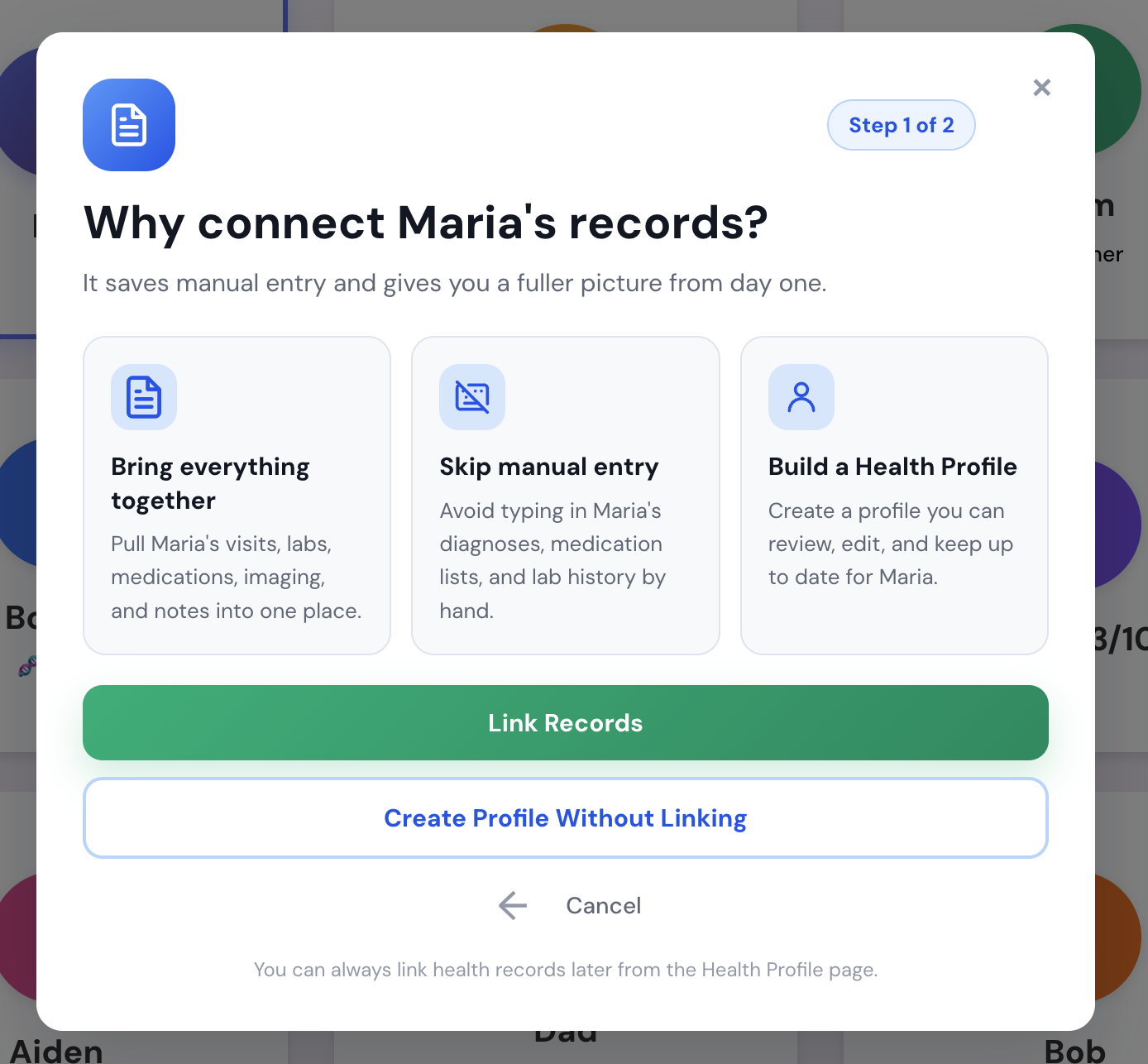
If you tap Link Records, Fasten's connection widget opens. The screens you'll move through are shown in What you'll see inside Fasten under Option 2 below.
If you tap Create Profile Without Linking, you'll land on the new profile's Health Profile page. You can come back to it any time using Option 2 below.
Option 2: Connect from your Health Profile
Best for: existing users, or anyone who wants to add records after signup.
Step by step
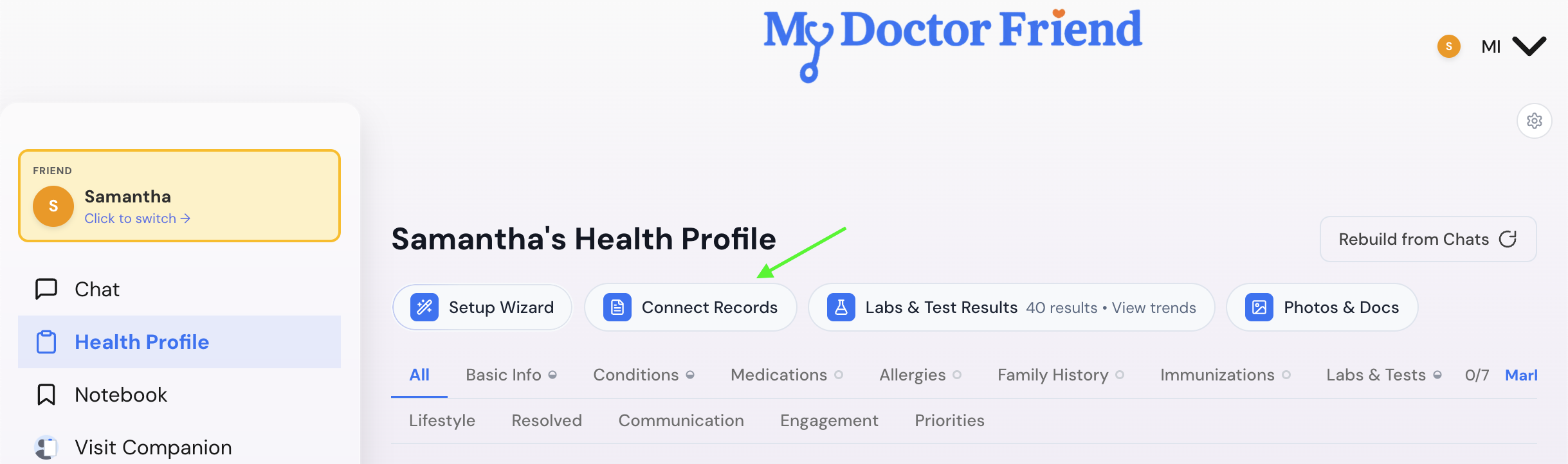
- Open the Health Profile page.
- Near the top, look for a "Connect Records" button.
- Tap it. A modal appears titled "Connect Your Health Records" (for caregiving profiles, it will say "Connect [Name]'s Health Records").
- Review the short explainer about Fasten Health and what gets imported.
- Tap Connect. Fasten's connection widget opens.
What you'll see inside Fasten
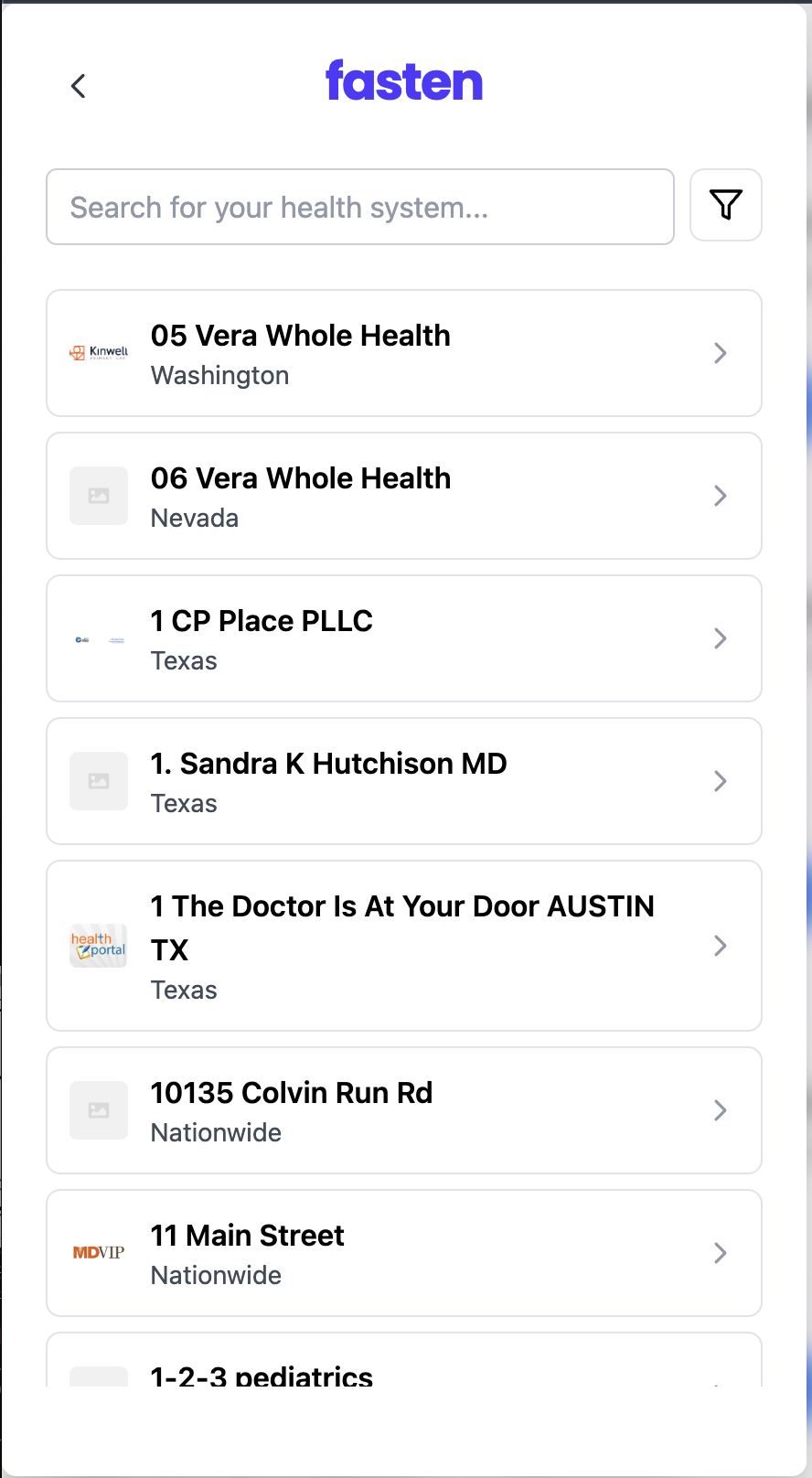
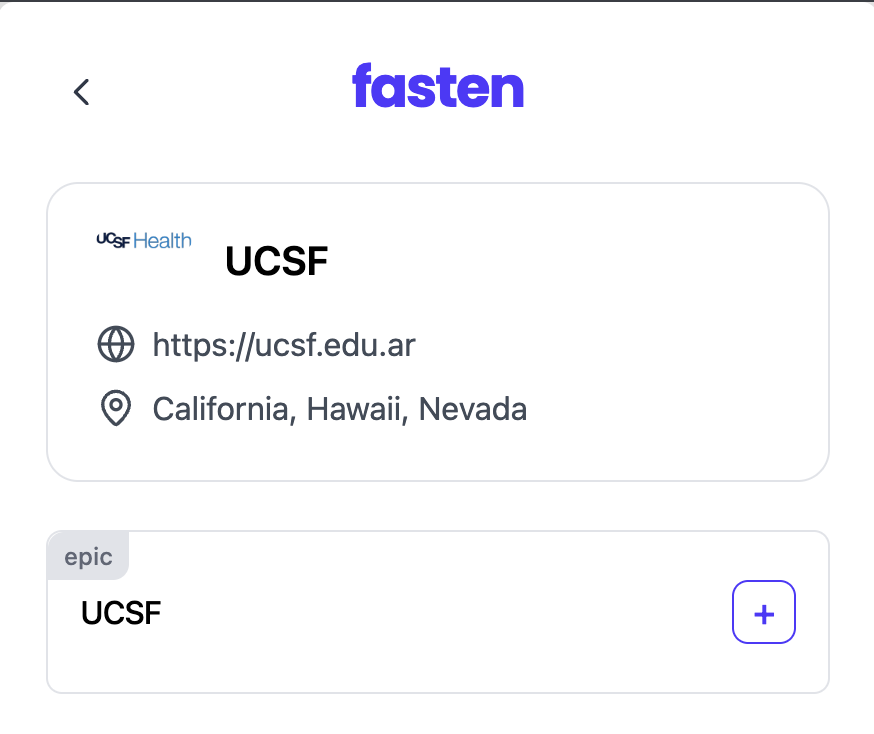
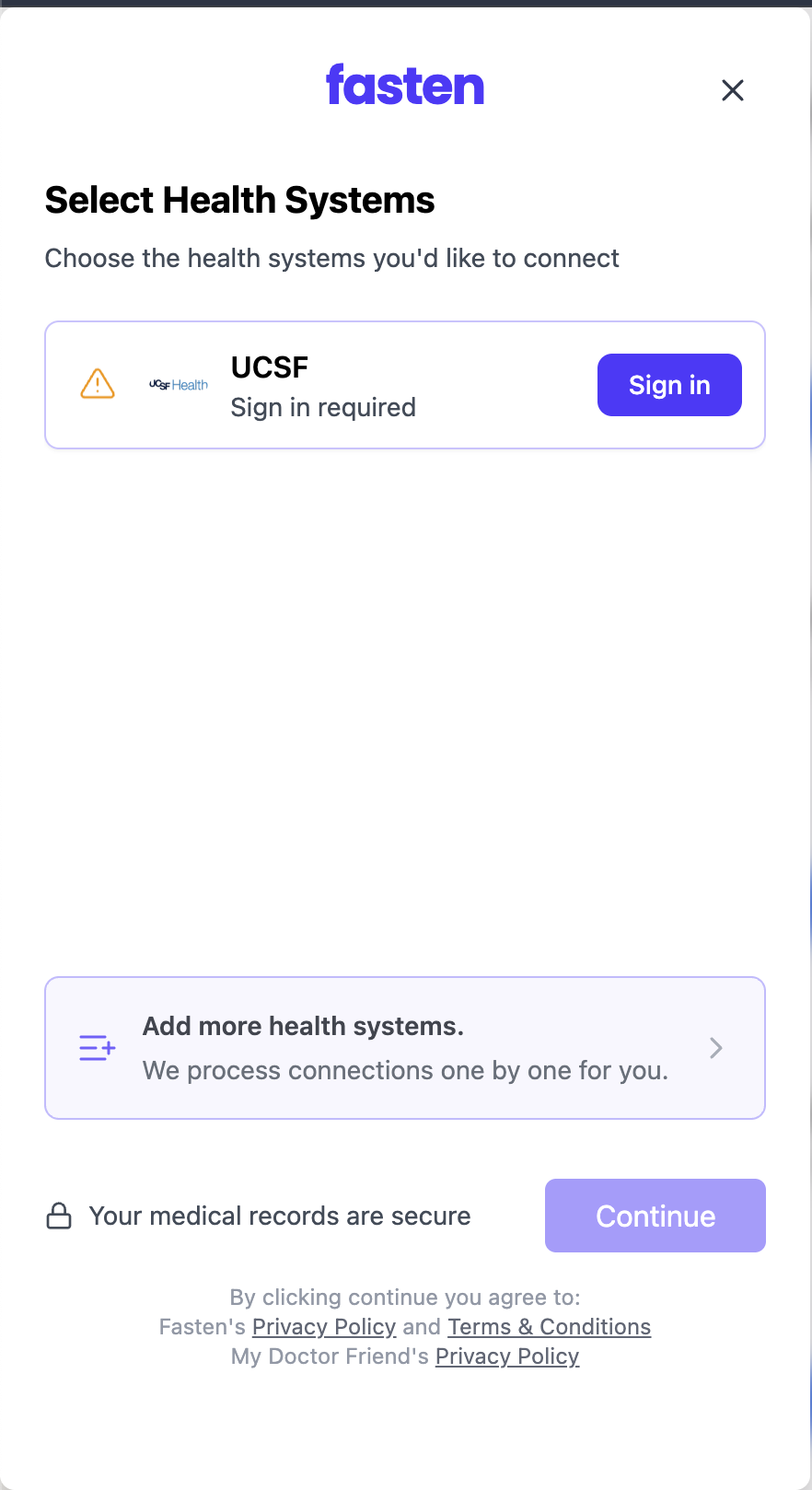
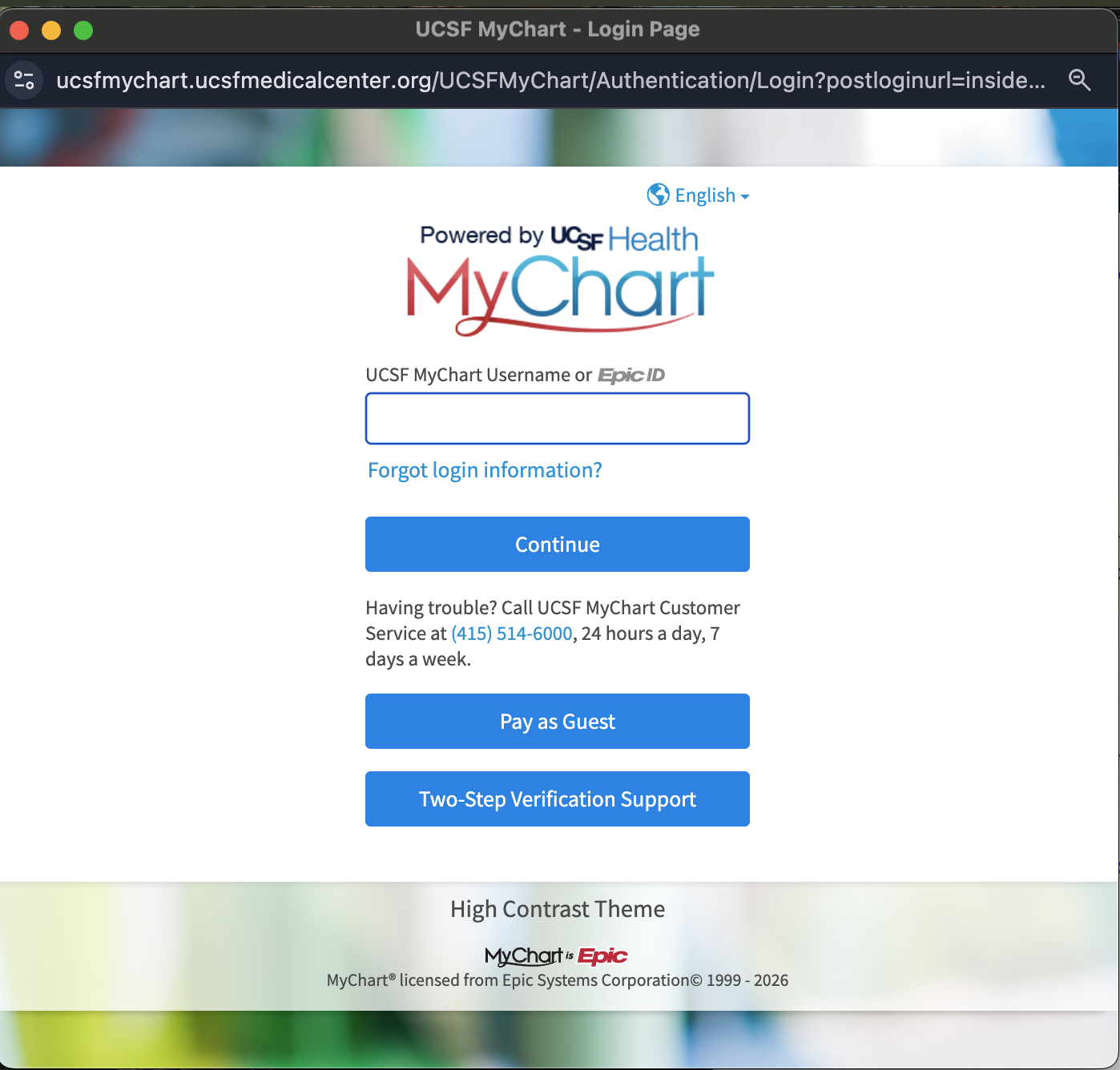
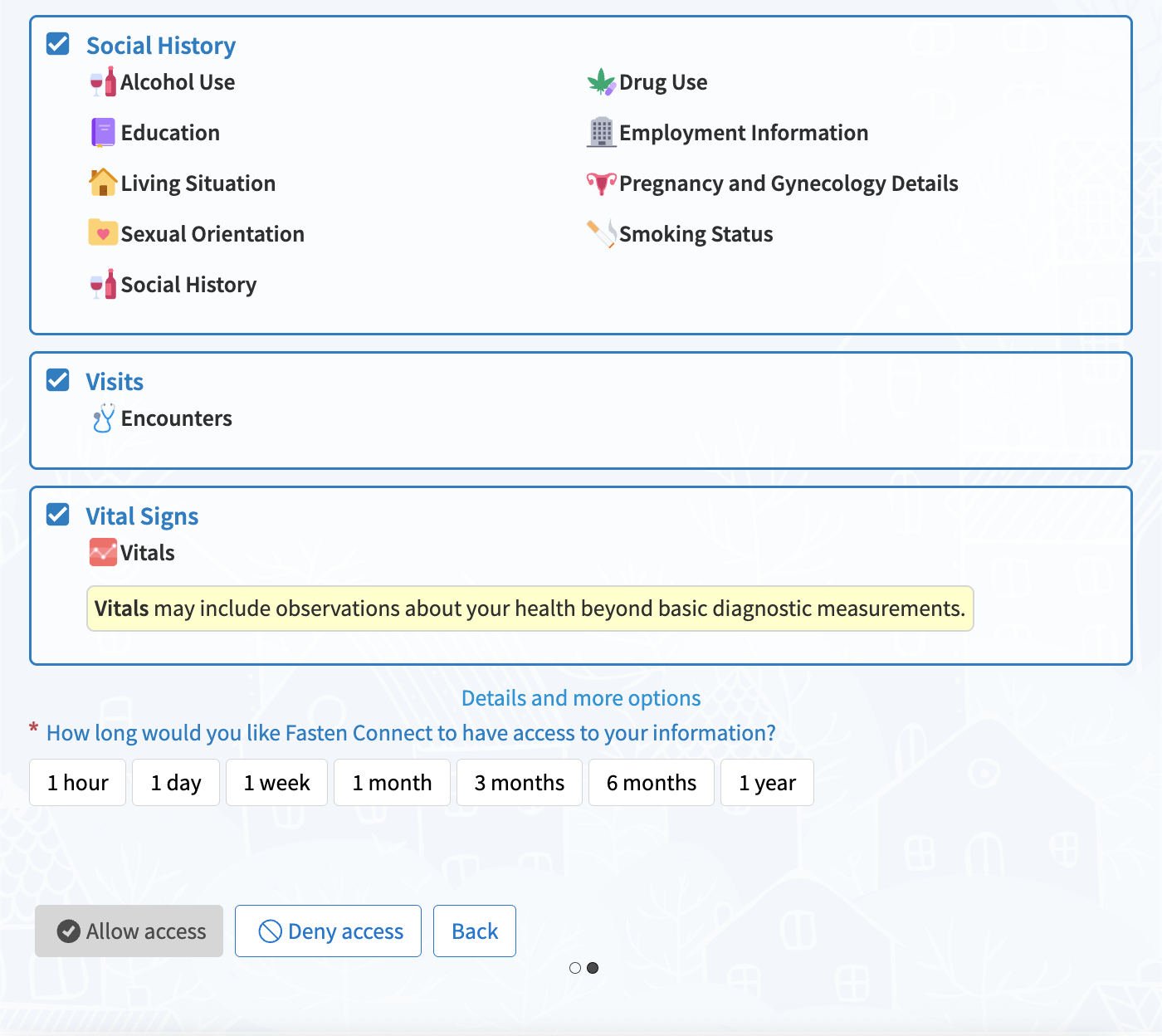
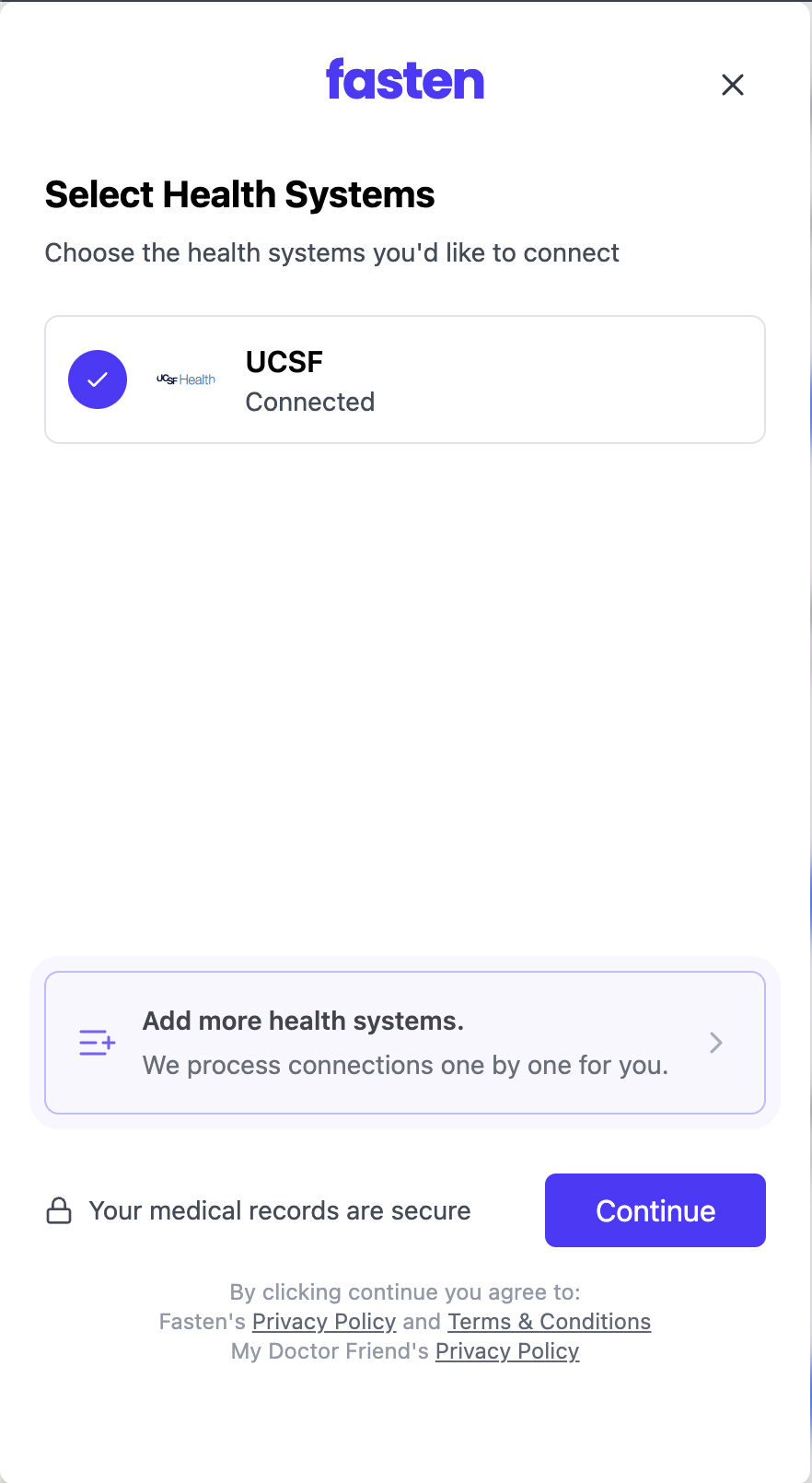
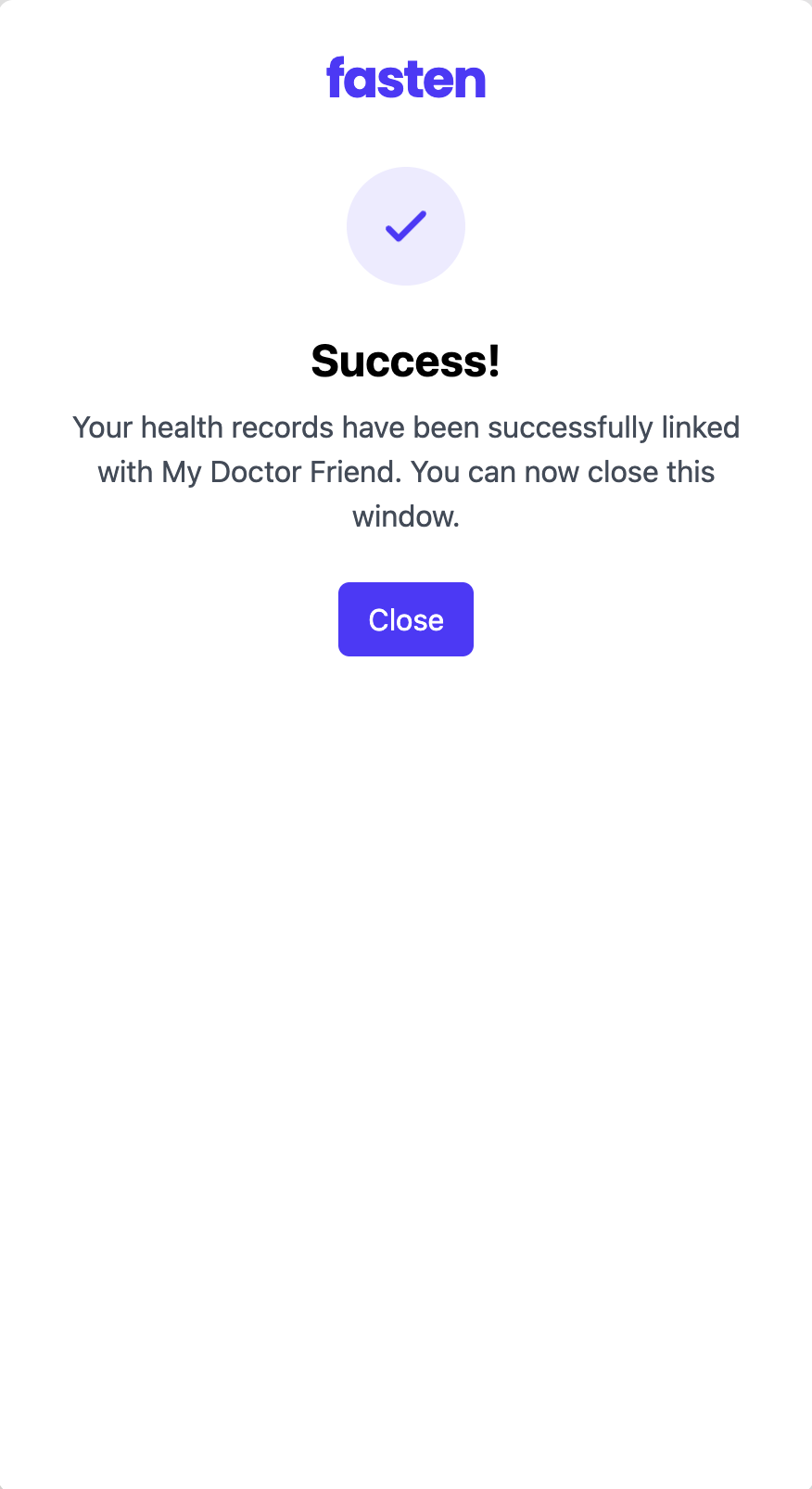
Once Fasten opens, it walks you through finding your health system, signing in to your patient portal, choosing what to share, and confirming the connection. Here are the screens you'll move through:
If you're already connected
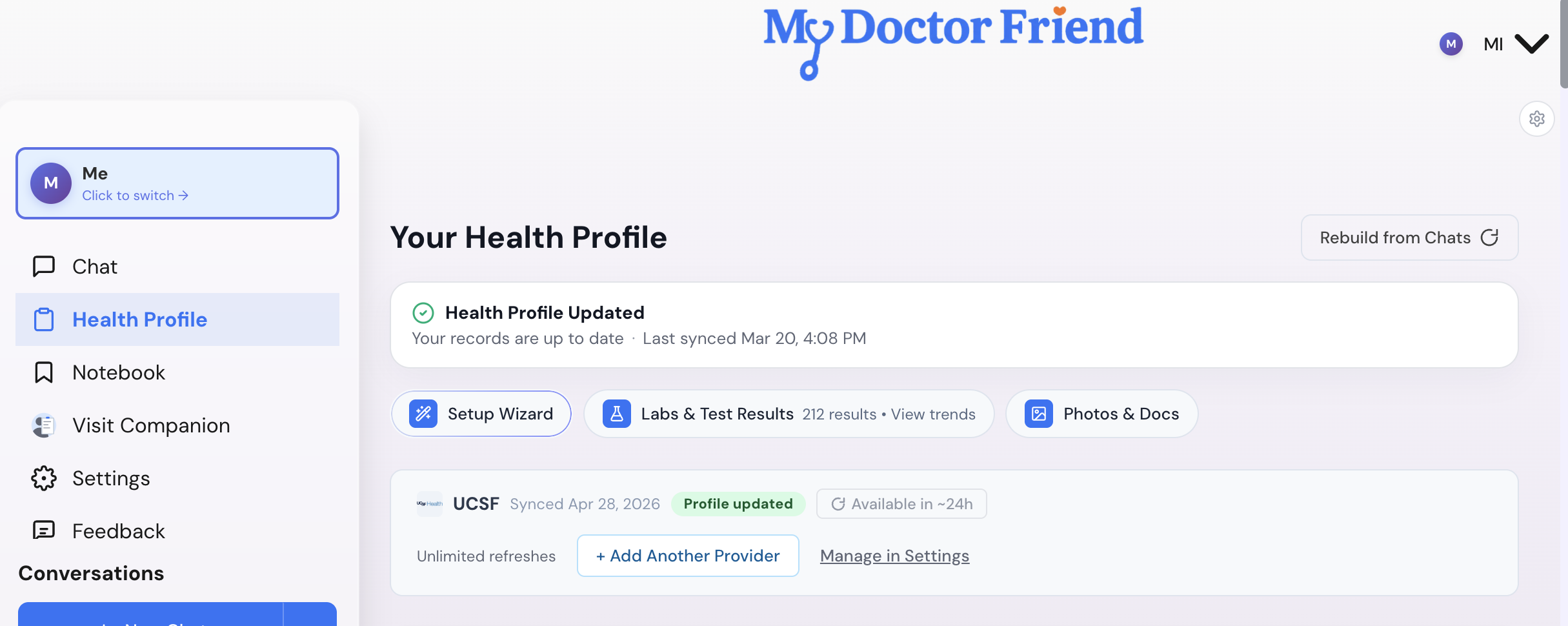
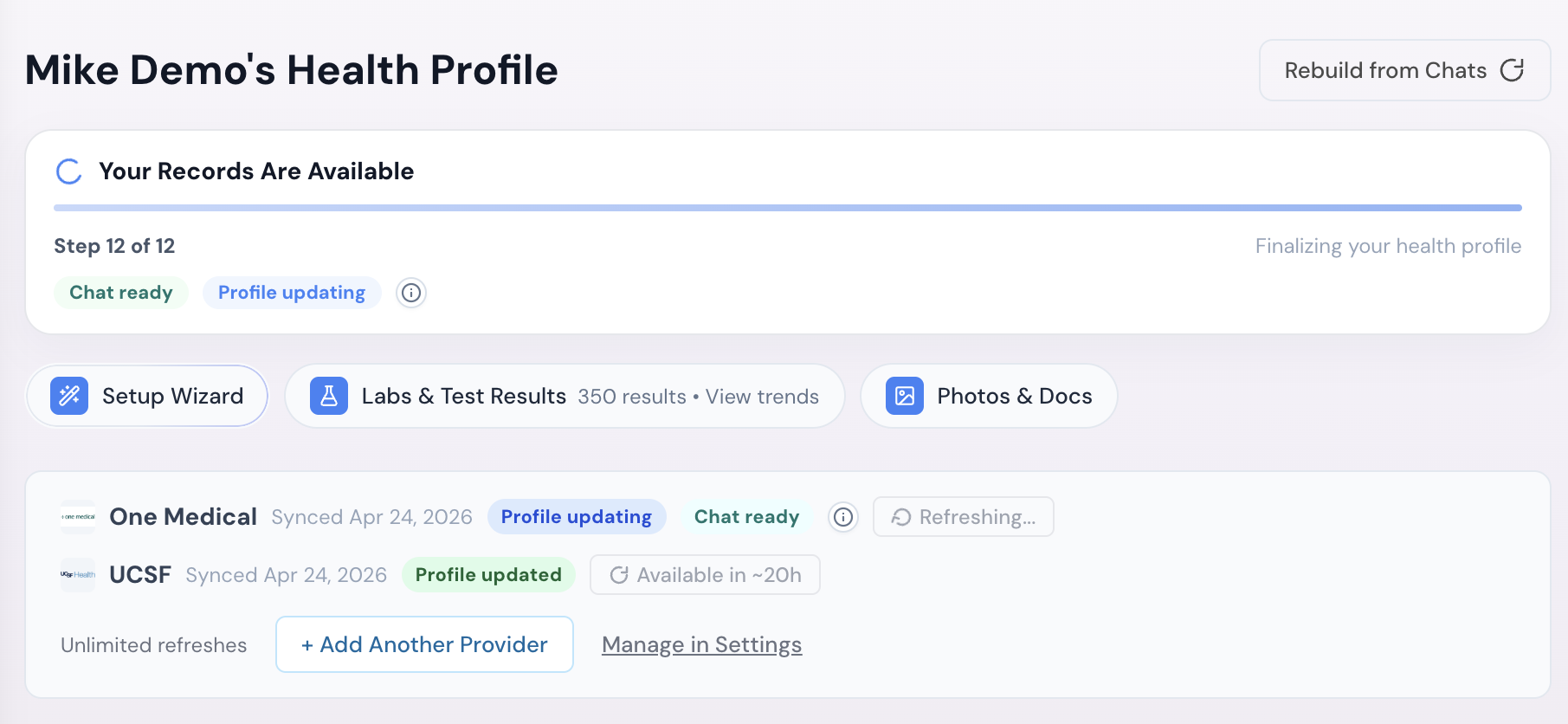
Instead of a Connect Records button, you'll see a strip showing your connected providers with their logos and last sync dates. From here you can:
- Tap Refresh Data to pull in new information. There's a 24-hour cooldown per provider to avoid overloading your hospital's systems.
- Tap + Add Another Provider to connect another health system.
- Tap Manage in Settings for full management, including disconnecting providers.
Option 3: Connect from Settings
Best for: managing connections across multiple profiles, or when you already know exactly which provider you want to add.
Step by step
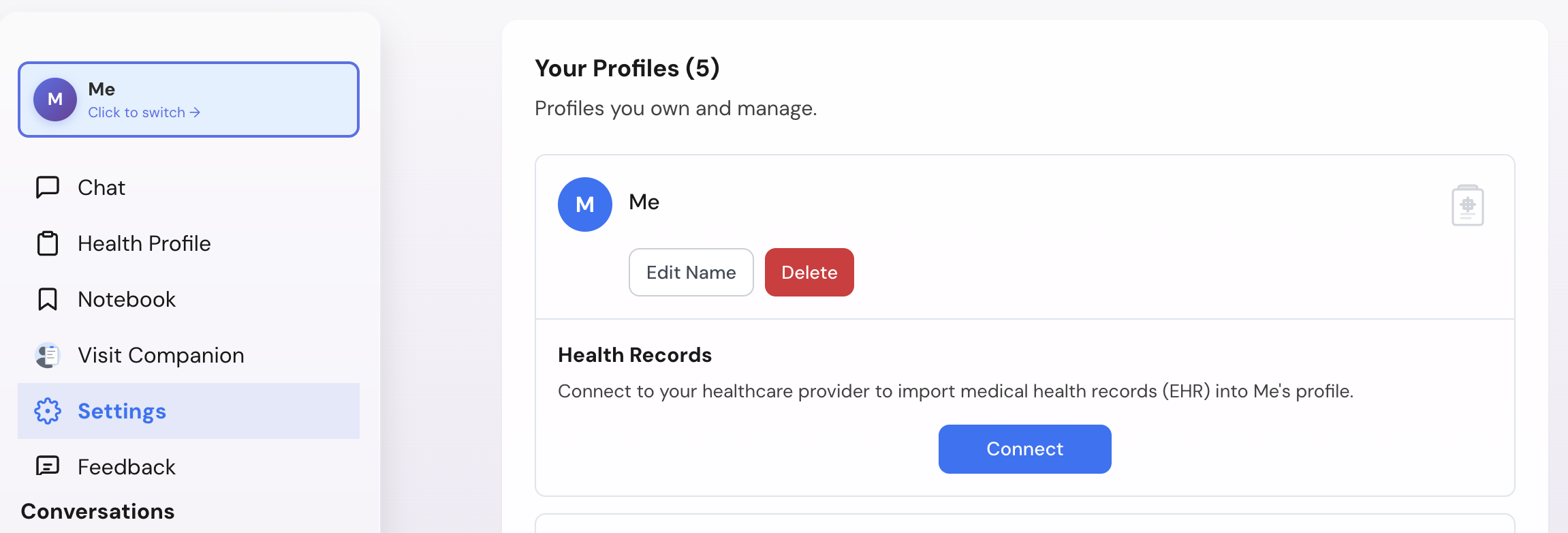
- Open Settings.
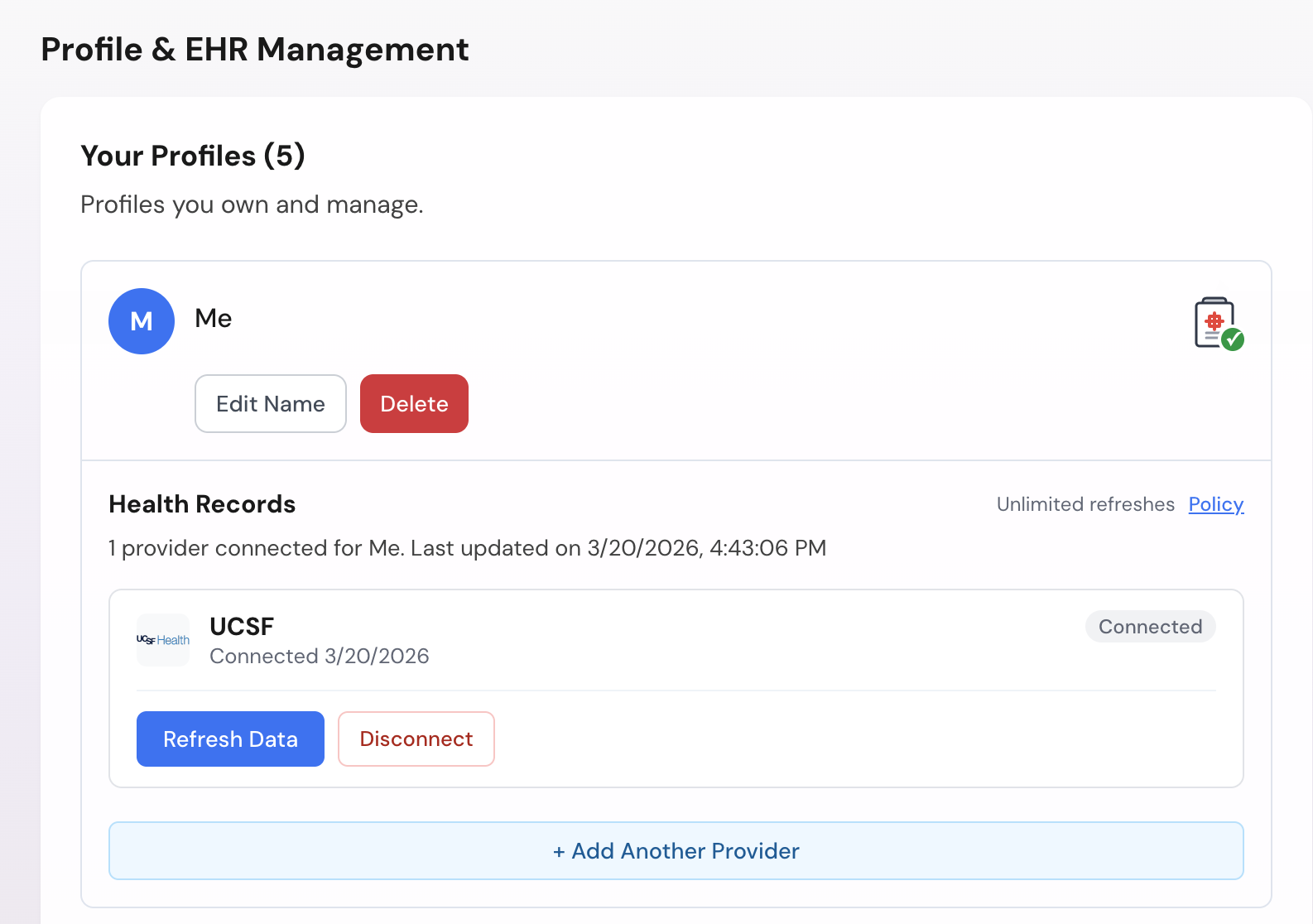
- Find the Profile & EHR Management section.
- Each profile row shows an EHR status badge:
- "EHR Connected" (green) means records are already linked for that profile.
- "EHR Not Connected" (gray) means no records are linked yet.
- Tap the badge, or the EHR action button next to Edit and Delete on the same row.
- Fasten's connection widget opens directly. If the profile is already connected, you'll see the management panel instead.
What you can do from Settings
- View all connected providers for each profile, with status and last sync date.
- Tap Refresh Data on a specific provider to pull in new data.
- Tap Disconnect to revoke access to a provider. The connection is cut immediately.
- Tap + Add Another Provider to connect another health system.
What happens after you connect
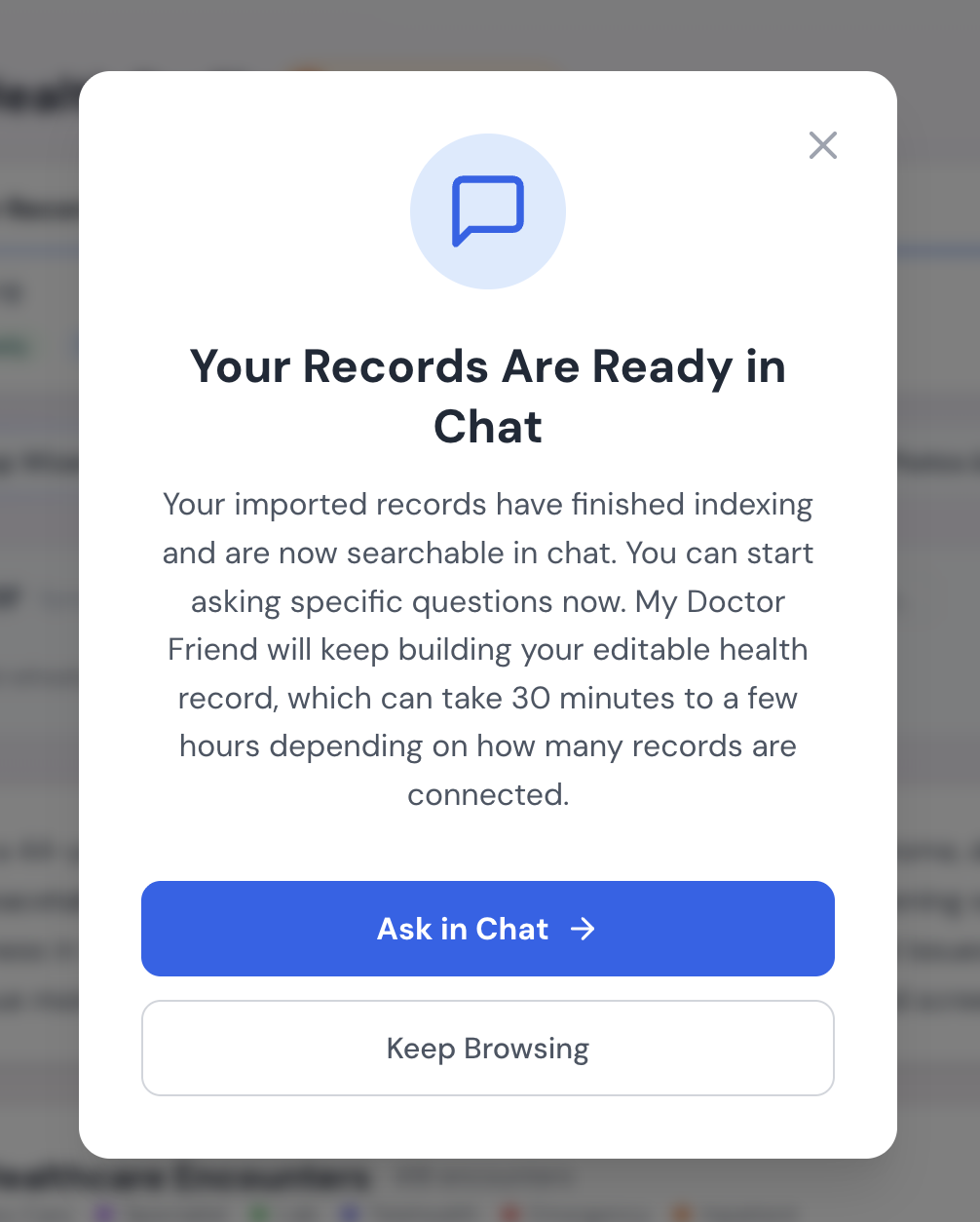
Within a few minutes after you connect, you'll see a confirmation card letting you know your records are ready in chat. From there, your access happens in two phases.
Start chatting within minutes
Tap Ask in Chat to begin asking My Doctor Friend about your records right away. Your imported records are indexed and searchable in chat within a few minutes, so you can ask questions about your history, medications, or recent visits as soon as the card appears.
Working record in up to two hours
Building your complete, editable working record takes longer because My Doctor Friend carefully reads through everything: conditions, medications, lab results, imaging reports, clinical notes, encounters, immunizations. Most working records are ready in 60 to 90 minutes. Records with a lot of history can take up to two hours.
A processing banner at the top of your Health Profile page shows the current step (for example, "Step 12 of 12, finalizing your health profile"), and each connected provider gets its own status. Chat ready means you can already ask questions about that provider's data; Profile updating means we're still building the editable working record for it.
When your working record is ready
You'll see a "Your Working Record is Ready" notification. From there you can tap View Health Profile to see everything in one place, or keep chatting.
Reviewing and editing your records
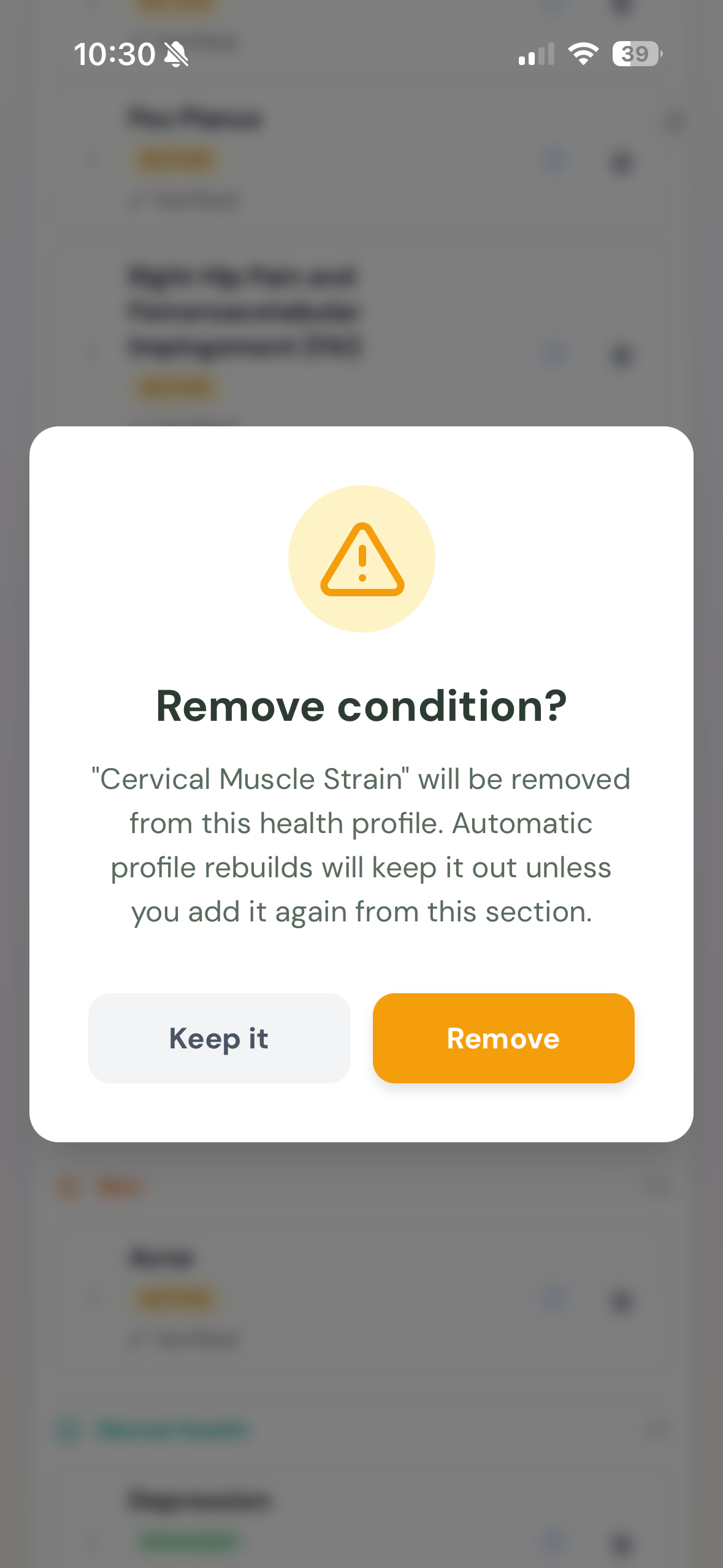
Once your health profile is built, this is where the ownership part kicks in. Your profile is a structured version of your records that you can edit. Medical records are often wrong. A resolved condition may still be marked active. A medication you stopped years ago may still be listed. You can now fix all of it.
Common things to do on a first review
- Mark a resolved condition as resolved.
- Remove a medication you stopped taking.
- Correct a wrong date or dosage.
- Update the status of a diagnosis.
- Add something that's missing from your record.
Connecting multiple health systems
If you see doctors at different hospitals or clinics, you can connect each one. All data from all your providers combines into one profile per person, so your primary care at one clinic and your specialist visits at another all end up in one place.
- From your Health Profile: tap + Add Another Provider on the connected providers strip.
- From Settings: tap + Add Another Provider under the relevant profile.
Connecting records for loved ones
If you manage health for your family, you can connect records for each person under their own profile.
- Create a separate profile for each family member you care for.
- Connect their health systems under their profile, using any of the three methods above.
- Their data stays on their own profile, separated from yours.
You'll be able to switch between profiles in the app to see each person's records, ask My Doctor Friend questions about their health, or share a summary with their care team.
Refreshing and managing your records
Syncing new data
After a new visit or fresh labs, go back to your Health Profile or Settings and tap Refresh Data on the relevant provider. My Doctor Friend pulls in what's new and skips what it already has, so re-syncs are faster than the initial import.
There's a 24-hour cooldown per provider between refreshes so we don't overload your hospital's systems.
Disconnecting a provider
You can disconnect a provider from the Settings page at any time. Tap Disconnect next to the provider. The connection is revoked immediately. Records already imported into your health profile remain available and editable unless you choose to remove them.
Need help?
Connecting records can sometimes be tricky, especially with older patient portals, forgotten logins, or smaller clinics that aren't on the big networks. If you get stuck, or if you'd prefer that we walk you through it:
- Reply to any email we've sent you.
- Or email us directly at the address in your account.
We'll schedule a time to help you set up your connection, at no cost. This is a hard problem, and we know it.
Frequently asked questions
Is my data shared with anyone?
No. Your data is never shared with insurance companies, pharmaceutical companies, advertisers, or anyone else. Period.
Where do my patient portal credentials go?
Directly to your health system, through Fasten Health's secure, HIPAA-compliant connection. My Doctor Friend never sees or stores your password.
Can I connect records for more than one family member?
Yes. Create a profile for each person, then connect their health systems separately under each profile. Data stays separated by person.
What happens if I disconnect a provider?
The connection is revoked immediately and no further data is pulled from that provider. Records already imported into your health profile remain available and editable unless you choose to remove them.
How often should I refresh my data?
Whenever you've had a new visit or new test results. There's a 24-hour cooldown per provider between refreshes.
What if my hospital or clinic isn't supported?
Fasten Health supports thousands of U.S. health systems, including all the major networks, but not every small clinic is on their list. If you can't find yours, reach out to us and we'll look into it.
Is this available on the free tier?
Connecting health records is a premium feature. On the free tier, you can still build your health profile naturally as you chat with My Doctor Friend. Lab results and other diagnostic tests would need to be uploaded manually unless you upgrade.